Subtractions
Overview
Subtractions are whole genome references used for eliminating reads from analyses that are likely to have originated from the host genome or non-pathogenic organisms associated with the host such as insects or fungi.
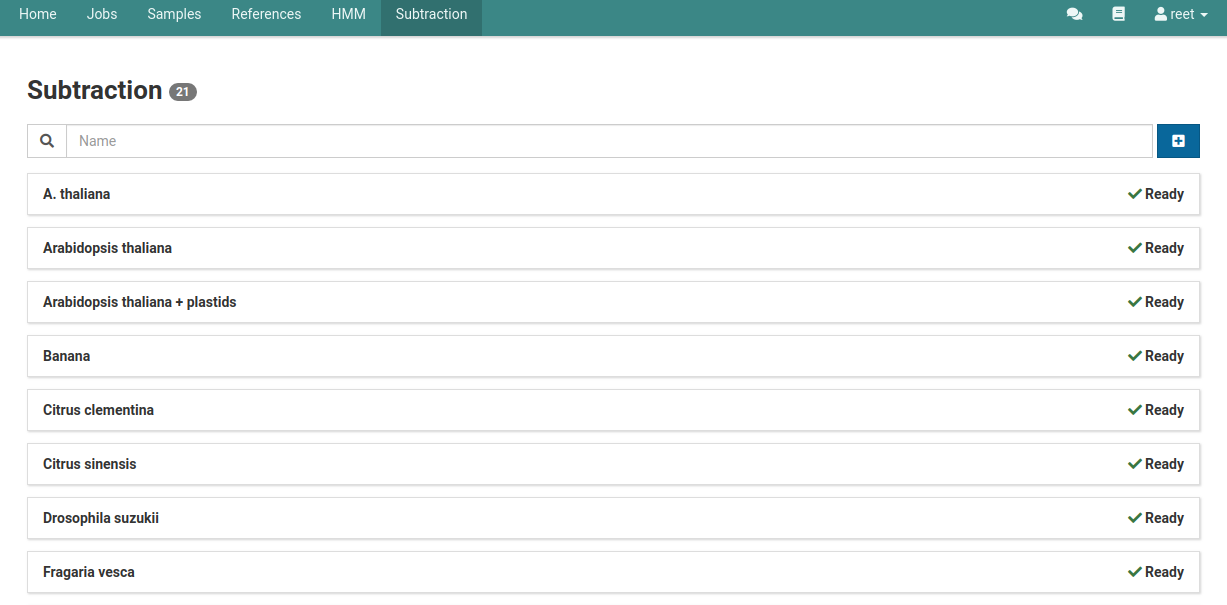
A list of subtractions made can be found on the Subtraction Overview page.
Create a subtraction
-
Find a FASTA file containing the sequences to subtract.
For example, you can download the Arabidopsis thaliana genome. Make sure mitochondrial and chloroplast sequences are included.
-
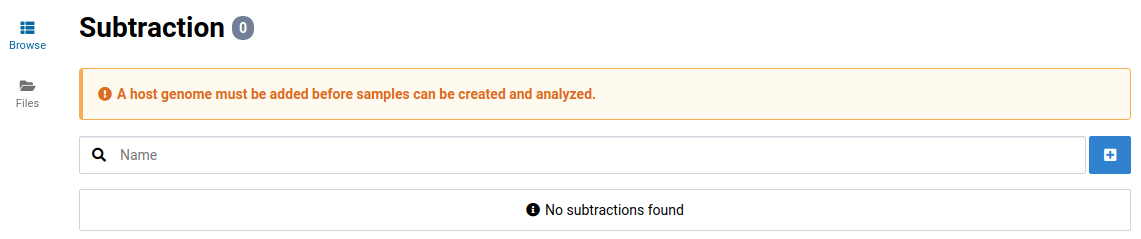
Go to the Subtraction view via the main navigation bar. You should see the following:
-
Click the Files link in the left sidebar to go to the subtraction file manager.
Upload the FASTA file.

-
Click in the Subtractions view
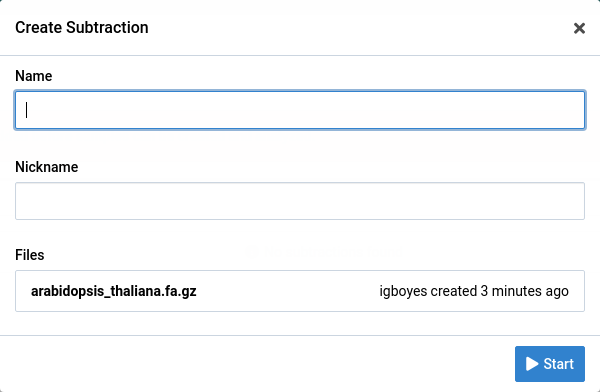
You see the subtraction creation dialog.
-
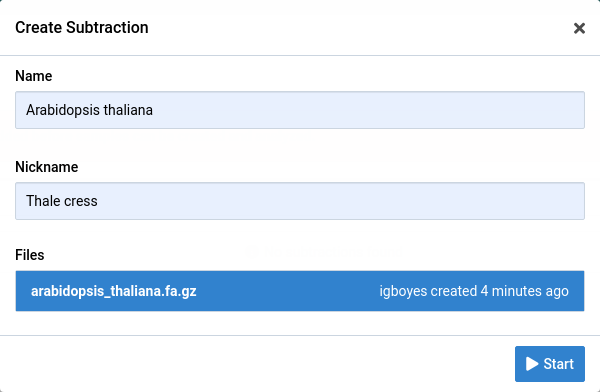
Enter a unique name and an optional nickname, select the FASTA file, and click Start to start the job.
-
Wait for the subtraction to be Ready before you try to use it.
While the subtraction is being created it has an Importing label.

Wait for the job to complete before trying to use the new subtraction. You can view its progress by going to the Jobs view.

The subtraction has the Ready label when it’s ready to use.

View a subtraction
-
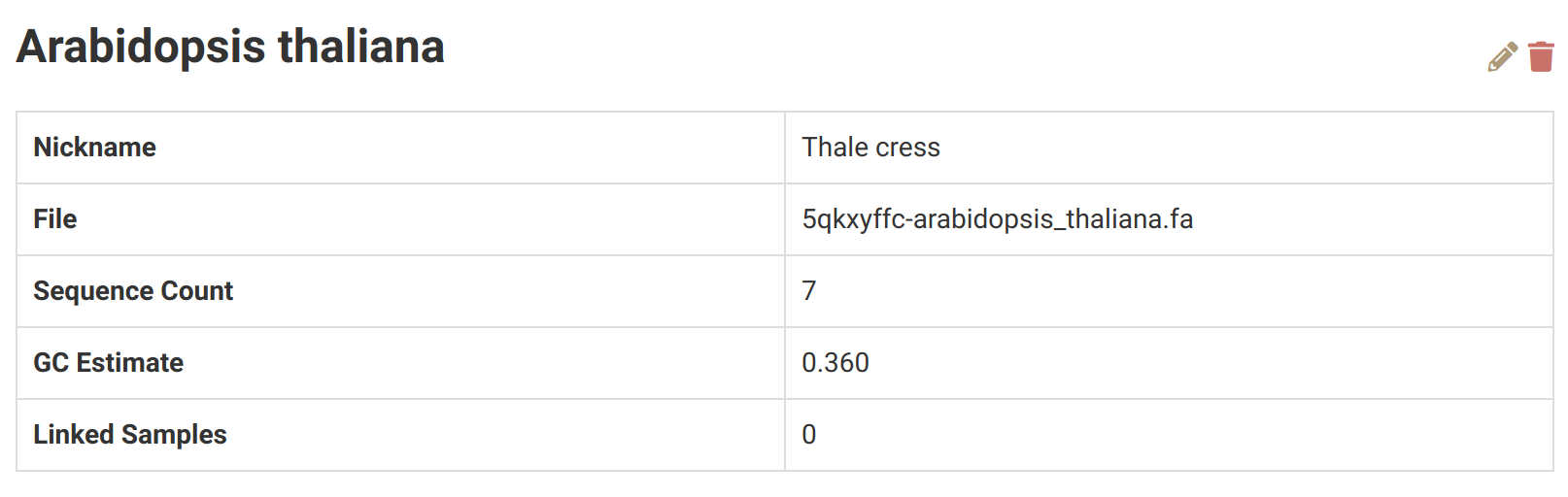
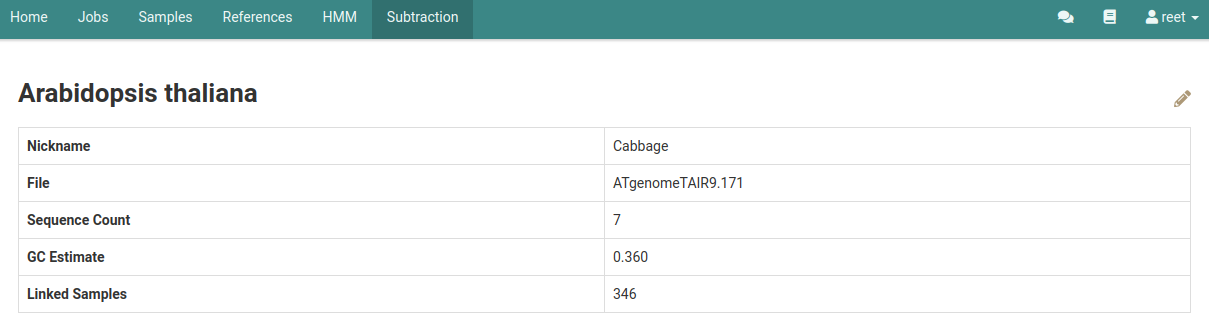
Click a subtraction to view its details.
Edit a subtraction
-
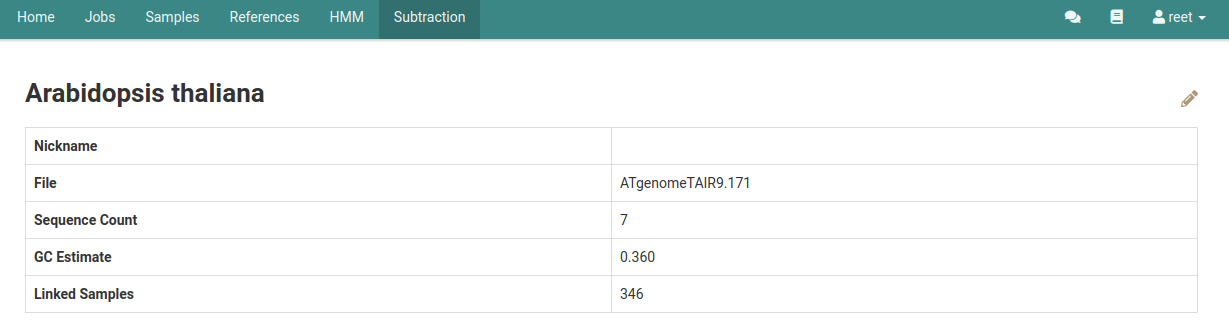
Click Subtractions in the main navigation bar, then click the subtraction to edit.
-
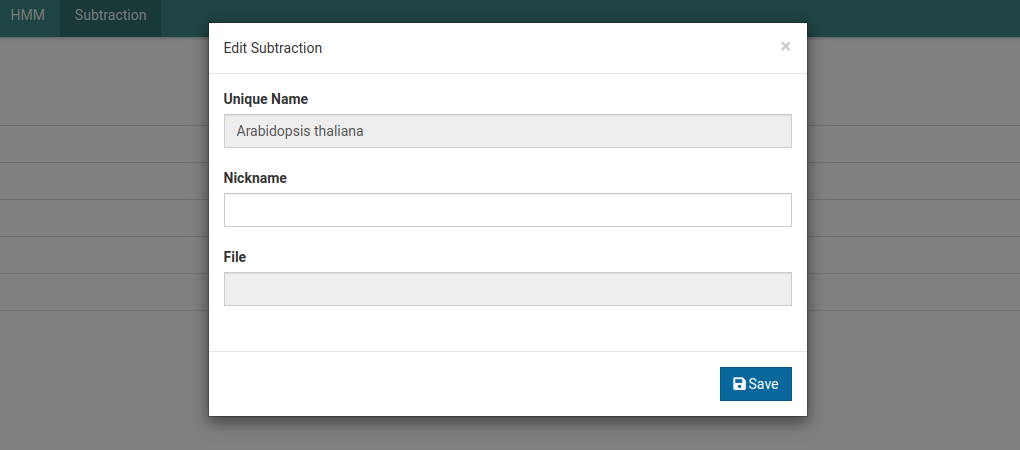
Click the icon to open the Edit Subtraction dialog.
-
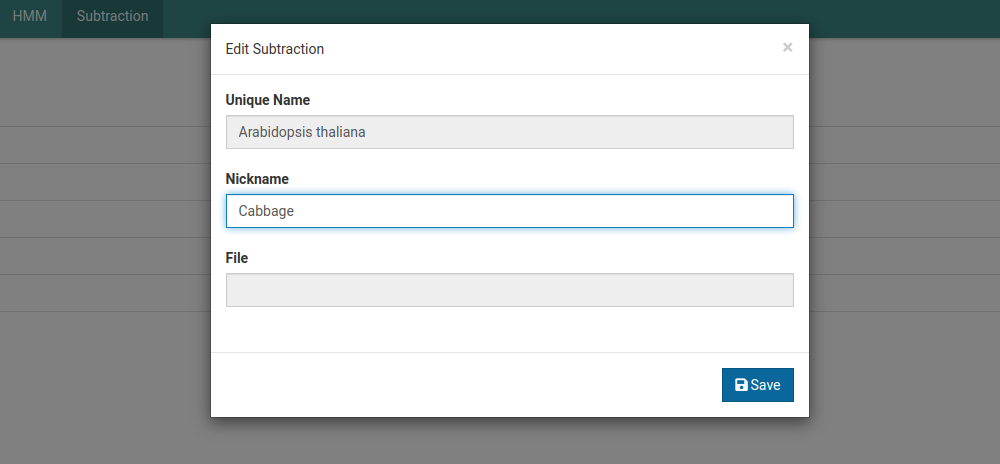
Update the field and click Save to save the changes.
-
See your edits reflected in the subtraction detail view.
Delete a subtraction
-
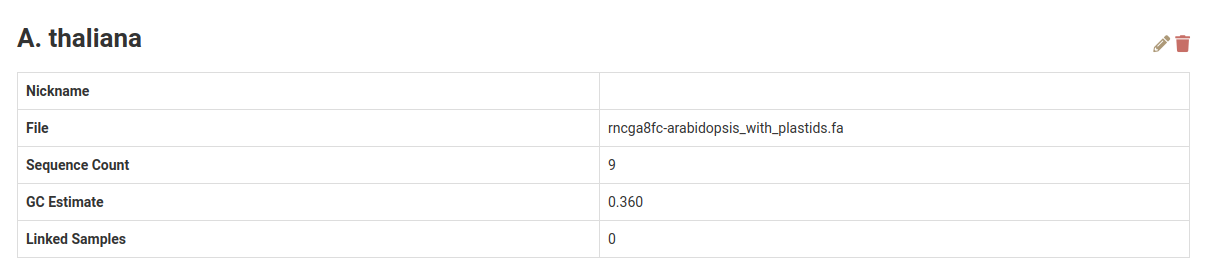
Navigate to the detailed view for the subtraction you wish to delete.
-
To delete the subtraction click the icon on the subtraction details page.
-
Click Confirm in the confirmation dialog to delete the subtraction.
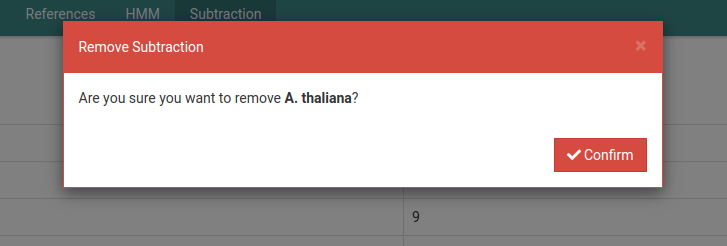
After confirming the deletion of a subtraction, it’s no longer shown on the subtraction overview page.