HMMs
Overview
Profile hidden Markov models (HMM) are used in Virtool to discover potential novel viruses using the Nuvs workflow.
To use the Nuvs workflow to predict novel viruses, you must first install HMM profiles and annotations. Together these data allow Nuvs to identify and annotate sequences assembled from your sample that might comprise part of a novel viral genome.
Install official data
-
Navigate to the HMMs view in the main navigation bar.
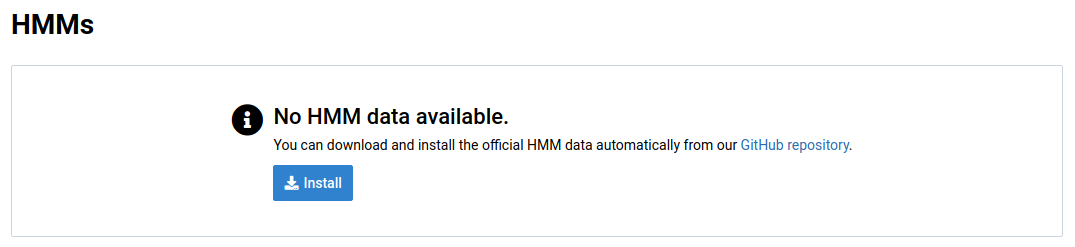
You should see something like this if no HMM data have already been installed:
-
Click Install Official to start the installation.
It could take some time to download and install the data.

-
Wait for the installation to complete.
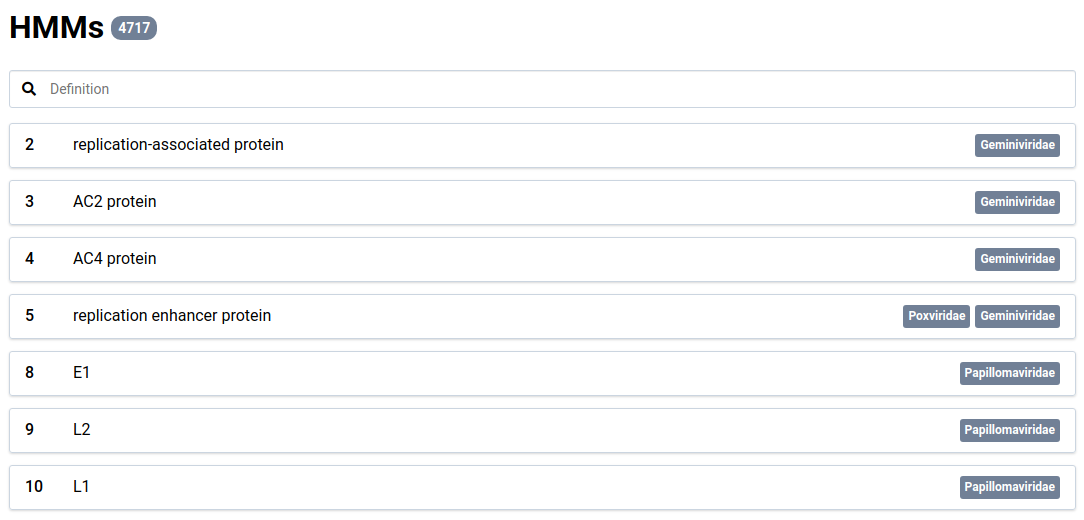
When installation is complete, the HMM data loads. You can then browse the annotations and use the Nuvs workflow.
Explore annotations
-
After HMM data has been installed, go to HMM in the main navigation bar.
-
Use the search bar to find HMMs by annotative name (for example, RNA replicase).
-
Click an HMM item to view its details.
The fields in the HMM detail view describe the profile and the protein sequences that were used for its creation.
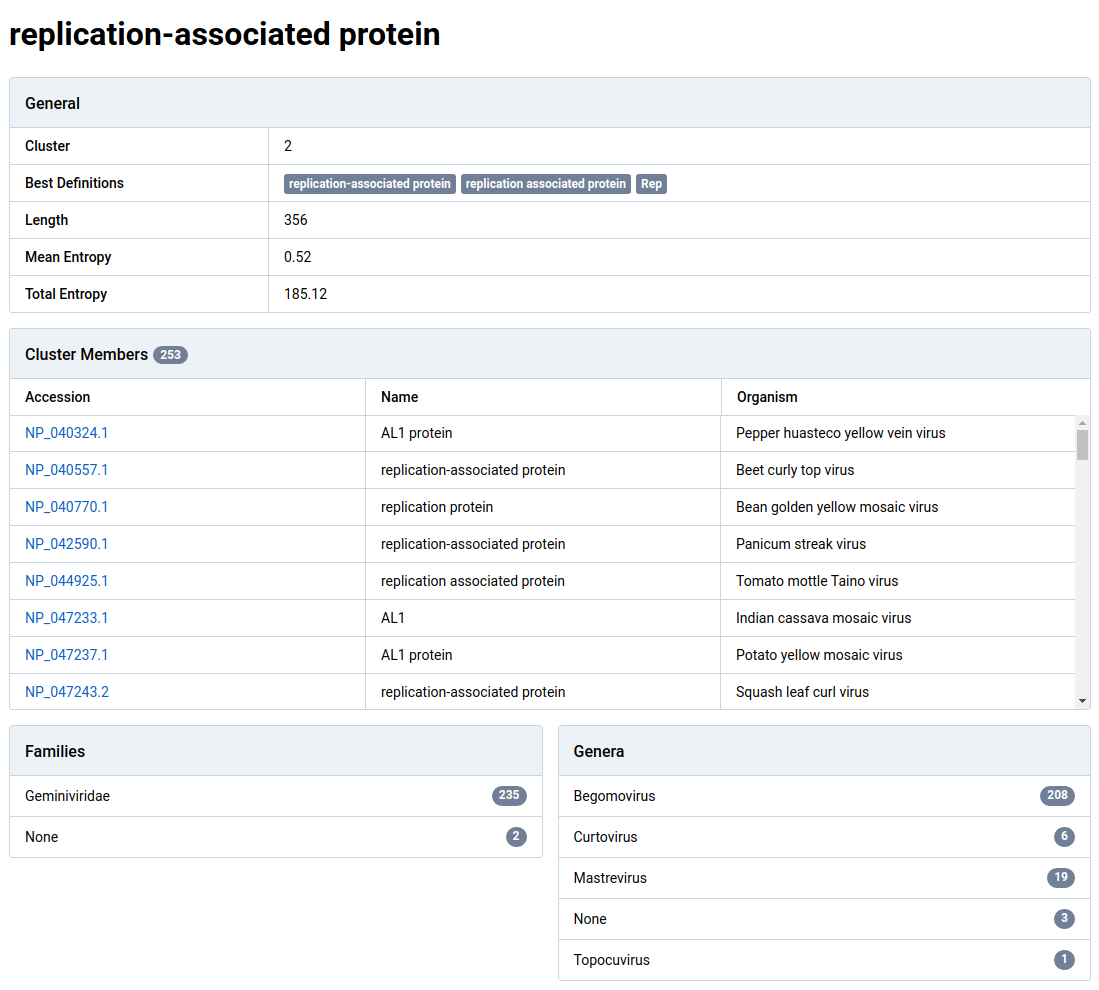
Field Description Cluster A unique integer identifier for the cluster Best Definitions The three most common protein definitions found in the cluster member protein annotations. Length The length of the motif identified in the profile. Mean Entropy Total Entropy Cluster Members A list of the proteins included in the cluster used to construct the profile HMM. Families The taxonomic families represented in the cluster and their cluster member counts. Cluster members without families are tagged None.
Purge HMM data
It’s possible to delete all HMM data from the disk and database. This is used primarily during testing and development.
You can reinstall the HMM data once the deletion process is complete.
-
Go to HMM in the main navigation bar.
-
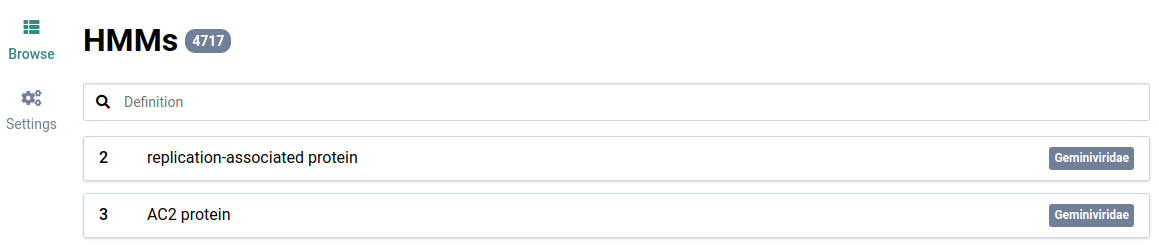
Click Settings in the left sidebar.

-
Click Purge to purge the HMM data.
You are redirected to the HMM list view. The installation message is now shown again because all HMM data has been deleted.